
How to Add a Deceased Loved One to a Wedding Photo
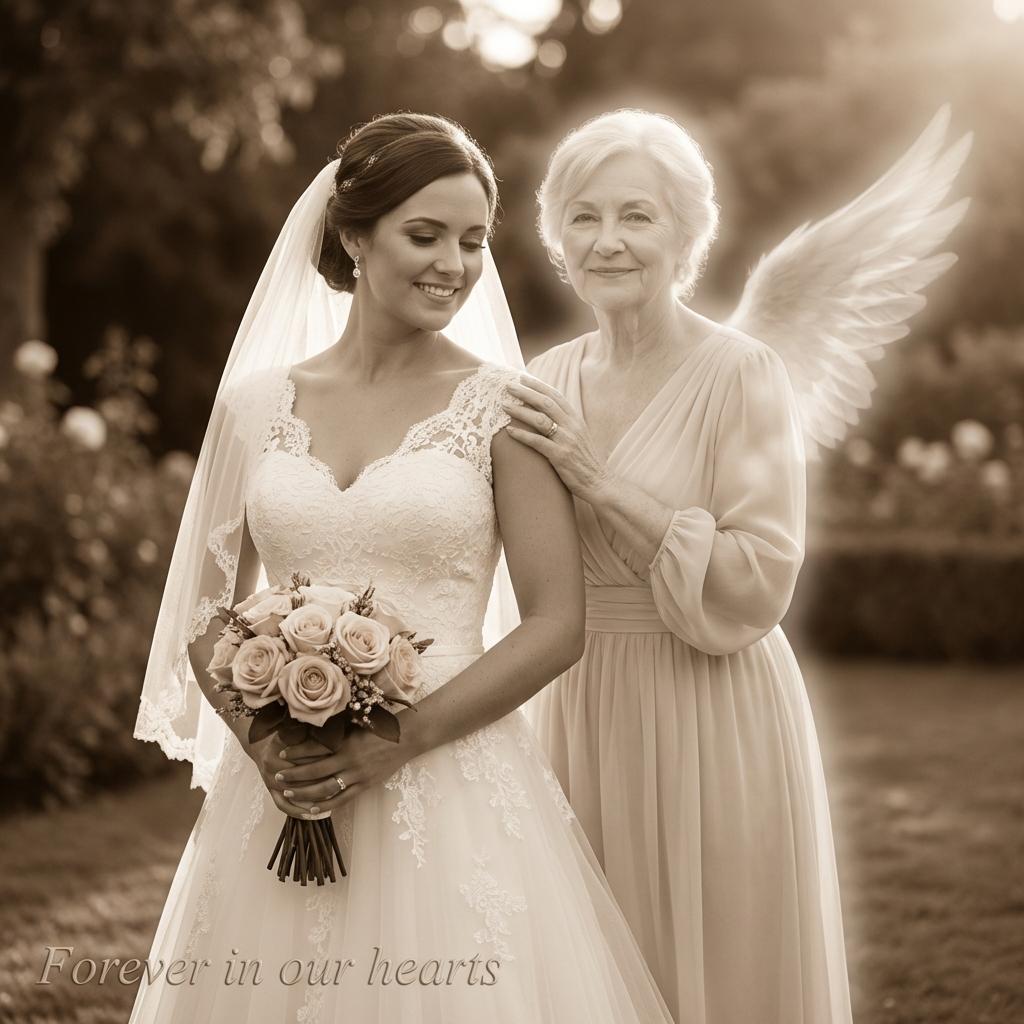
A wedding is a celebration of love, but it can also be a reminder of those who aren't there to share it. One of the most touching ways to honor a passed parent, grandparent, or sibling is to digitally include them in your wedding photos.
This process, often called a "Heaven Edit" or "Spirit Photo," involves blending an old photo of the loved one into a new wedding portrait. Using the Memorial Photo Editor, you can create a beautiful, tasteful tribute without needing expensive Photoshop skills.
The "Ghost" vs. "Solid" Look
Before you begin, decide on the aesthetic you want. There are two main styles for memorial edits:
- The Spirit Look (Ghost): The loved one is added with 50-70% opacity, making them look like a spirit watching over the couple. This represents their spiritual presence. It's subtle, emotional, and very popular for parents.
- The Solid Look: They are added as if they were physically there. This involves color-correcting the old photo to match the new one. This is popular for creating "complete" family portraits where everyone looks present together.
Step-by-Step Guide
Warning: This can be an emotional process. Take your time.
1. Select Your Base Photo
Choose a group photo from the wedding where there is a clear empty space (or "negative space") next to the bride or groom. A photo with a simple background (like trees or a wall) is easier to edit than a crowded reception hall.
2. Upload the Loved One's Photo
Find a high-quality photo of your loved one. Crucial Tip: Match the lighting! If the wedding photo was taken outside in the sun, finding a picture of your loved one also taken outdoors will make the blend look natural. Indoor flash photos rarely blend well with outdoor natural light.
3. Use the Background Remover
IdealPhoto has a built-in AI background remover. Upload the loved one's photo and click "Remove Background" to isolate them from their original setting. This saves you hours of manual erasing.
4. Blend and Adjust
Place them into the wedding photo. Use the "Opacity" slider to achieve the desired ghost effect. You can also apply a slight "Feather" to the edges to make them blend softly into the surroundings. If they look too bright or too dark, use the "Brightness" slider to match the wedding photo.
Privacy Matters
Services like this are deeply personal. Many online editors upload your private family photos to public clouds. IdealPhoto is different.
We process this sensitive data strictly on your device. We do not store, view, or claim ownership of your memorial photos. Your privacy and grief are respected.